
Your camera may not connect to your phone because of Bluetooth, Wi-Fi, app, permission, or firmware problems.
When you ask, “why is my camera not connecting to my phone,” the cause is often simple but hidden. A camera and phone may use Bluetooth for setup, Wi-Fi for photos, or both at once. This guide explains the most likely causes, the best fixes, and the mistakes that can make the problem worse.
Why Is My Camera Not Connecting to My Phone?
The most common reason is a failed connection between the camera’s wireless system and the phone’s Bluetooth or Wi-Fi settings. Your camera may also be paired with another phone, have low battery power, or use an outdated companion app.
Here are the main causes:
• Bluetooth or Wi-Fi is turned off on the phone or camera.
• The camera is connected to another device nearby.
• The camera app does not have the right permissions.
• The phone is using mobile data instead of the camera’s Wi-Fi network.
• The camera battery is too low for wireless sharing.
• The camera app, phone software, or camera firmware is outdated.
• The camera and phone are too far apart.
• A previous pairing record has become damaged.
Think of the connection like a short bridge. Bluetooth helps the devices find each other, while Wi-Fi often carries large photo and video files. If either side of the bridge is closed, the connection may fail.

Check the Basics First
Before changing advanced settings, check the simple items. These quick checks solve many cases where people wonder why is my camera not connecting to my phone.
Turn on Bluetooth and Wi-Fi
Open your phone’s Settings app and confirm that Bluetooth and Wi-Fi are enabled. Then open the camera’s wireless or communication menu and turn on its connection feature.
Some cameras use Bluetooth only for pairing. Others create a temporary Wi-Fi network for image transfer. This means both Bluetooth and Wi-Fi may need to be active.
Charge the camera battery
Many cameras limit wireless functions when the battery is low. Some models turn off Wi-Fi to save power, while others stop pairing during heavy use.
Charge the camera to at least 30 percent before testing again. Keep the camera connected to a charger if the manufacturer allows wireless use while charging.
Move the devices closer
Place the phone within a few feet of the camera. Walls, metal objects, crowded wireless areas, and other electronic devices can weaken the signal.
For the first pairing, keep the camera and phone close. You can test a longer distance after the connection works.
Close other camera apps
Only one camera app may control the connection at a time. Close other photo transfer apps, gallery tools, and Bluetooth utilities before trying again.
On Android, open the recent apps screen and swipe away the camera app. On iPhone, open the app switcher and close the app before starting a fresh connection.
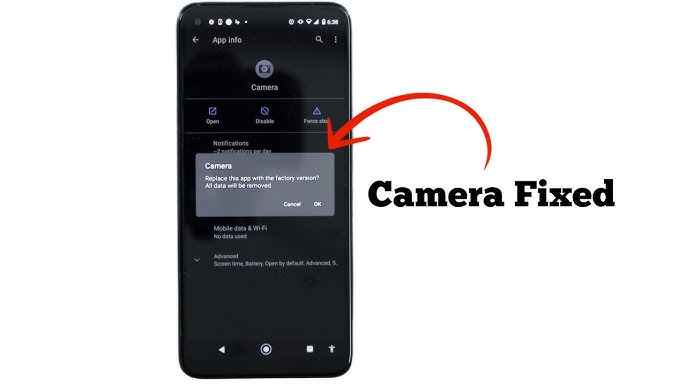
Restart Both Devices
A restart clears many temporary errors. It also closes stuck wireless services that may prevent the camera from appearing in the phone’s Bluetooth or Wi-Fi list.
Follow these steps:
-
Turn off the camera.
-
Turn off Bluetooth and Wi-Fi on the phone.
-
Restart the phone.
-
Turn the camera back on.
-
Enable the camera’s connection feature.
-
Open the official camera app.
-
Start the pairing process from inside the app.
Do not pair the camera from the phone’s Bluetooth menu unless the camera maker specifically tells you to do so. Many camera apps need to create the connection themselves.
If you still wonder why is my camera not connecting to my phone after a restart, remove the old pairing record. A saved connection can become invalid after a phone update, app update, or camera reset.
Forget the Old Pairing and Pair Again
A clean pairing often works better than repeated connection attempts. This is especially true if the camera previously connected to a different phone.
On an iPhone
-
Open Settings.
-
Tap Bluetooth.
-
Find the camera name.
-
Tap the information icon.
-
Choose Forget This Device.
-
Turn the camera off and on.
-
Pair again through the camera app.
If the camera uses Wi-Fi, open Settings, tap Wi-Fi, and forget the camera’s saved network if it appears there.
On an Android phone
The menu can vary by brand, but the process is usually similar:
-
Open Settings.
-
Tap Connected devices or Connections.
-
Open Bluetooth.
-
Select the camera.
-
Tap Forget, Unpair, or Remove.
-
Restart both devices.
-
Pair through the camera’s app.
Some Android phones also save old camera networks under Wi-Fi settings. Remove the old network before trying again.
One lesson from real-world device troubleshooting is that tapping “Connect” again and again rarely helps. A clean reset of the old connection is usually faster and safer.

Check Camera App Permissions
Your camera app may need access to Bluetooth, nearby devices, local networks, photos, and location services. Without these permissions, the app may open normally but fail to find the camera.
iPhone permissions
Go to Settings, find the camera app, and check these options:
• Bluetooth
• Local Network
• Photos
• Cellular Data
• Notifications, if the app needs background alerts
The exact options depend on the app and iOS version. If Local Network access is disabled, the app may not see the camera’s Wi-Fi connection.
Android permissions
Go to Settings, Apps, and select the camera app. Review these permissions:
• Nearby devices
• Location, if requested by the camera app
• Photos and videos
• Files and media
• Wi-Fi or local network access
Android versions use different names for some permissions. If the app asks for location access during setup, allow it while using the app. Some camera apps use this permission to scan for nearby wireless devices.
Privacy settings are helpful, but they can also explain why is my camera not connecting to my phone. The app cannot discover a camera if the phone blocks its wireless access.

Use the Correct Camera App
Many camera brands have separate apps for different product lines. A newer app may not support an older camera, and an older app may not support a new model.
Check the camera manual, official support page, or camera menu for the correct app name. Avoid random third-party apps unless you trust the developer and understand what access the app requests.
Also check whether your camera needs:
• A manufacturer account
• A firmware update
• A special pairing mode
• A QR code scan
• A camera-generated password
• A USB connection for first-time setup
Some cameras use one app for remote control and another for photo transfer. The app may show the camera but still fail when you try to download files. This does not always mean the camera is broken.
Confirm the Camera Is in Pairing Mode
A camera may have Bluetooth enabled without being ready to pair. Look for an option such as Add device, Pair with smartphone, Connect to smart device, or Send to smartphone.
The exact menu depends on the brand and model. When pairing mode is active, the camera may display a name, code, QR code, or confirmation message.
Follow the on-screen steps in order:
-
Open the wireless settings on the camera.
-
Select the phone connection option.
-
Open the official app.
-
Choose Add camera or Connect.
-
Confirm the matching code on both devices.
-
Allow the app to switch to the camera’s Wi-Fi network.
-
Return to the app and test a small photo transfer.
If the phone asks to join a camera network, accept it. The camera’s Wi-Fi network may not provide internet access, but it can still transfer photos between the two devices.

Fix Wi-Fi Connection Problems
Wi-Fi is often the reason why is my camera not connecting to my phone during photo transfers. A camera may create its own Wi-Fi network, or it may connect through your home router.
If the camera creates its own network
Your phone may show a warning such as “No Internet Connection.” This is normal in many cases. The phone may disconnect from the camera network if it thinks the network is not useful.
Stay connected to the camera network and return to the camera app. Temporarily turn off mobile data if the phone keeps switching away from the camera’s Wi-Fi.
If the camera uses your home Wi-Fi
Make sure both devices use the same network. Some cameras work only with a 2.4 GHz network, while newer models may support 5 GHz.
Guest networks can also block communication between devices. If possible, connect the camera and phone to the main home network instead of a guest network.
Avoid crowded wireless areas
Airports, apartments, offices, and event spaces can have many wireless signals. Try pairing in a quiet area with fewer nearby devices.
Large video files may take longer to transfer. Keep the camera and phone close, and do not lock the phone screen during the first test.

Update the App, Phone, and Camera
Updates often fix connection errors, compatibility issues, and security problems. Check for updates in the App Store or Google Play, then install any available update for the camera app.
Also check for:
• Phone operating system updates
• Camera firmware updates
• Updated Bluetooth or network drivers on compatible devices
Read the camera manufacturer’s update instructions carefully. A firmware update may require a full battery, a memory card, or a USB cable.
Do not turn off the camera during a firmware update. A failed update can create a more serious problem than a normal pairing error.
If the camera worked before a phone update, the app may need its own update. If the problem began after an app update, reinstalling the official app may help.
Reset Network Settings Carefully
Resetting network settings can fix damaged Bluetooth, Wi-Fi, and connection records. However, it also removes saved Wi-Fi passwords and paired Bluetooth devices.
Use this step only after trying the easier fixes.
On iPhone
Open Settings, tap General, Transfer or Reset iPhone, Reset, and choose Reset Network Settings.
On Android
Open Settings and look for System, Reset options, and Reset Wi-Fi, mobile, and Bluetooth. Menu names vary by phone maker.
After the reset, reconnect your home Wi-Fi and pair the camera again. Keep your Wi-Fi password available before starting.
A network reset does not normally erase photos, apps, or personal files. Still, confirm the menu carefully so you do not choose a full factory reset by mistake.
Check for Phone and Camera Compatibility
Not every camera supports every phone. Older cameras may depend on outdated Bluetooth versions, unsupported encryption, or apps that no longer work with newer operating systems.
Check the manufacturer’s compatibility list for:
• Your exact camera model
• Your phone model
• Your iOS or Android version
• Required app versions
• Supported Bluetooth and Wi-Fi features
A camera may connect to one phone but not another. This can happen because of different operating systems, permissions, wireless chips, or app support.
For example, a camera app may support recent iPhones but have limited support on older Android devices. In other cases, the camera may transfer photos but not support remote shooting.
Compatibility limits are important when asking why is my camera not connecting to my phone. Sometimes the correct fix is not a setting change. You may need a supported app, a firmware update, a cable, or a memory card reader.
Test With a Small Photo
Large RAW files and long videos can make a working connection seem broken. Start with one small JPEG photo.
Take a new photo, open the camera app, and transfer only that file. If the small photo works, the issue may involve file size, storage space, or unsupported file formats.
Check the following:
• Free storage on the phone
• Free space on the camera’s memory card
• Whether the app supports RAW files
• Whether the app supports 4K or high-frame-rate video
• Whether the phone can open the transferred file
Some apps transfer a preview first and download the full file later. A slow transfer does not always mean the connection failed.
What to Do When Nothing Works
If the camera still will not connect, use a process of elimination. Test the camera with another compatible phone, if one is available. Then test your phone with another Bluetooth or Wi-Fi device.
These tests can show which device has the problem:
• The camera works with another phone: Your phone, app, or permissions may be the cause.
• Your phone works with another camera: The original camera may need a reset or repair.
• Neither device works with other devices: Check phone network settings or camera hardware.
• The camera does not appear anywhere: Its wireless feature may be disabled or faulty.
You can also use a USB cable, direct memory card reader, or computer as a temporary solution. These methods may be less convenient, but they help you access important photos while you solve the wireless issue.
Contact the camera maker when the wireless menu is missing, the camera shows repeated error codes, or the device fails after a firmware update. Provide the exact model, phone type, operating system, app version, and error message.
Mistakes to Avoid
Small mistakes can delay the fix. Avoid these common troubleshooting errors:
• Pairing from the phone’s Bluetooth menu when the app requires in-app pairing.
• Leaving the camera connected to another phone.
• Rejecting nearby-device or local-network permissions.
• Using a guest Wi-Fi network.
• Turning off Wi-Fi because the camera network says it has no internet.
• Trying to transfer a huge video before testing one small photo.
• Resetting the whole camera before saving important photos.
• Installing an unofficial app without checking its privacy and support details.
• Updating firmware with a low battery.
The safest approach is to change one setting at a time. This makes it easier to see which step solved the problem.
Frequently Asked Questions About Why Is My Camera Not Connecting to My Phone
Why is my camera not connecting to my phone through Bluetooth?
The camera may not be in pairing mode, or it may still be linked to another phone. Forget the old Bluetooth record, restart both devices, and begin pairing inside the official camera app.
Why does my camera connect but not transfer photos?
The connection may use Bluetooth for control but Wi-Fi for file transfers. Check that the phone joins the camera’s Wi-Fi network, keep mobile data from switching the connection, and test with one small JPEG photo.
Why is my camera not connecting to my phone after an update?
An app or phone update may change permissions or create an old pairing conflict. Update the camera app, review Bluetooth and local-network permissions, then forget and recreate the camera connection.
Can low battery stop my camera from connecting to my phone?
Yes. Some cameras disable wireless features or limit pairing when the battery is low. Charge the battery and try again with the camera close to the phone.
Do I need Wi-Fi and Bluetooth turned on?
Often, yes. Bluetooth may help the phone discover and control the camera, while Wi-Fi handles photos and videos. The exact setup depends on the camera model and its companion app.
Why is my camera not connecting to my phone even though it appears in Bluetooth?
The camera may require pairing through its app instead of the phone’s Bluetooth settings. Remove the saved pairing, open the official app, and follow the camera’s on-screen connection steps.
Will resetting network settings delete my photos?
A phone network reset normally removes saved Wi-Fi networks and Bluetooth pairings, not your photos. A camera factory reset can affect camera settings, so back up important files before using it.
Conclusion
The answer to why is my camera not connecting to my phone is usually found in pairing records, app permissions, Wi-Fi settings, battery level, or compatibility. Start with a restart, use the correct app, confirm pairing mode, and test a small photo before trying advanced resets.
Work through the steps in order and change one setting at a time. If the camera fails with several compatible phones, contact the manufacturer or use a cable or memory card reader for reliable access. Share your camera model and phone type in the comments if you need help narrowing down the cause.
Recent Posts
Parts of a 35mm Camera: Complete Guide to Every Key Part and Its Function
Learn the parts of a 35mm camera, what each part does, and how the lens, shutter, film chamber, viewfinder, and controls work together.
Parts of a Camera Canon: A Complete Guide to Canon Camera Parts and Functions
Learn the parts of a Canon camera, what each part does, and how the lens, sensor, shutter, controls, viewfinder, and screen work together.