
Your camera may not have video because it lacks video support, uses the wrong mode, or has a setting, app, or hardware problem.
If you are asking, “why does my camera not have video,” you are not alone. This issue can happen with webcams, phones, digital cameras, security cameras, and compact point-and-shoot models. The good news is that many causes are easy to check, and this guide will help you find the exact problem without guessing.
Why does my camera not have video?
The most common reason is simple: the camera may be designed only for still photos. Some older digital cameras, disposable cameras, toy cameras, and basic security devices can take pictures but cannot record moving video.
If your camera should support video, the problem may come from one of these areas:
• The camera is in photo mode instead of video mode.
• The video feature is hidden in a menu.
• The memory card is missing, full, slow, or damaged.
• The battery is too low for video recording.
• The camera app does not have the right permission.
• Your computer is using the wrong webcam.
• A software, firmware, driver, or connection problem is blocking video.
• The camera has a damaged lens, sensor, microphone, storage slot, or internal circuit.
Think of video recording as a chain. The lens captures light, the sensor creates frames, the processor compresses those frames, and storage saves them. If one link fails, your camera may still take photos but refuse to record video.

Check whether your camera supports video
Before troubleshooting settings, confirm that your model can record video. This step saves time because not every camera has a movie function.
Look for these signs:
• A button marked Movie, Video, or with a small video camera icon.
• A mode dial with a movie symbol.
• A menu option called Movie Mode, Video Recording, or Record.
• A video section in the user manual.
• A product description that lists video resolution, such as 1080p or 4K.
Search for the exact model number printed on the camera body. Do not rely only on the camera’s appearance. Two cameras from the same brand may look almost identical while having very different features.
For example, some older point-and-shoot cameras take excellent photos but have no video function. A webcam may also show a camera image in a photo app while offering no built-in recording button. The recording may need to be handled by software on your phone or computer.
If the manual does not mention video recording, the camera probably does not support it. In that case, no setting or software update can add a missing hardware feature.

The camera is in photo mode
One of the simplest answers to “why does my camera not have video” is that it is still in photo mode. Many cameras do not show video controls until you switch to the correct mode.
Try these steps:
-
Turn on the camera.
-
Find the mode dial, mode button, or touchscreen mode menu.
-
Select the video camera icon or Movie mode.
-
Press the record button once to start.
-
Press the same button again to stop.
On some phones, open the Camera app and swipe left or right until you reach Video. On a webcam, open an app such as Camera, FaceTime, Zoom, or another video program. The webcam itself may not include a separate video mode.
If the camera screen shows a red record icon, a timer, or a changing time counter, video mode is active. If you only see a shutter icon, you may still be in photo mode.
A common mistake is pressing the shutter button quickly. On some models, the shutter button takes a photo even when the user expects it to start recording. Use the button labeled Record when one is available.

The video option is missing from the menu
Sometimes the camera supports video, but the option is hidden because of the current setting. Certain modes can disable video recording.
Check whether you are using:
• A special scene mode.
• A panorama or time-lapse mode.
• A self-timer setting.
• A playback screen instead of the live camera view.
• A connected external flash or accessory.
• A restricted child or guest mode.
• A high-speed burst setting.
Switch the camera back to Auto, Program, or Standard mode. Then look for the video option again.
On a phone, the Camera app may open in Portrait, Photo, or Night mode. Swipe through the modes to find Video. On a digital camera, press the Menu button and look for a tab with a movie icon.
If the video menu appears but is gray, the camera may be blocking recording because of a full storage card, low battery, high temperature, or an unsupported setting.
The memory card is full or too slow
A camera needs steady storage space for video. Photos are often saved as single files, but video creates a continuous stream of data. A full or slow memory card can stop recording or prevent the video option from working.
Check the following:
• Confirm that the memory card is inserted correctly.
• Delete old files or copy them to a computer.
• Format the card inside the camera.
• Use a card with enough free space.
• Check the speed rating recommended by the camera maker.
• Test a different compatible card.
High-resolution video needs faster storage. A camera that records 4K video may require a card with a higher speed class than a camera that records 720p video.
Back up your files before formatting. Formatting removes the photos and videos on the card. If the camera says Card Error, Memory Full, or Cannot Record, the card is one of the first things to inspect.
Avoid buying an unknown card from an unreliable seller. Fake or poor-quality cards may report a large capacity but fail when the camera writes video data.

The battery is too low
Video recording uses more power than taking a single photo. The camera must keep the sensor, screen, processor, microphone, and storage system active for the whole recording.
Some cameras block video when the battery is nearly empty. Others begin recording and then stop after a few seconds.
Try this:
• Charge the battery fully.
• Use the correct charger.
• Remove and reinsert the battery.
• Test with a genuine replacement battery.
• Connect the camera to a proper power source if supported.
An old battery can show a full charge but lose power quickly under load. This often happens with cameras that are several years old.
Heat can also affect recording. If the camera feels hot, turn it off and let it cool in a shaded place. Do not place it in a freezer or against an ice pack, because condensation can damage the electronics.

Your phone camera app lacks permission
If your phone camera shows no video option, the issue may be a permission or app problem. This is common after a system update, a privacy change, or the installation of a new camera app.
On iPhone, check Camera access under the privacy settings. On Android, open the app permissions for the Camera app and allow camera access. You may also need to allow microphone access if the video includes sound.
Then try these steps:
• Close the Camera app completely.
• Restart the phone.
• Install available system updates.
• Update the Camera app if an update exists.
• Remove restrictions from parental or screen-time controls.
• Test the front and rear cameras.
If one camera records video and the other does not, the problem may be a damaged sensor or lens module. If no camera app can record, the problem is more likely related to permissions, system software, storage, or hardware.
Do not install random camera apps that request excessive access to contacts, messages, or files. Use trusted apps and review their permissions carefully.
Your computer is using the wrong camera
When people ask, “why does my camera not have video,” they may actually mean that a webcam does not work in a video call. In many cases, the webcam works, but the computer has selected another camera.
This can happen when your computer has:
• A built-in webcam.
• A USB webcam.
• A virtual camera from streaming software.
• A camera connected through a dock or monitor.
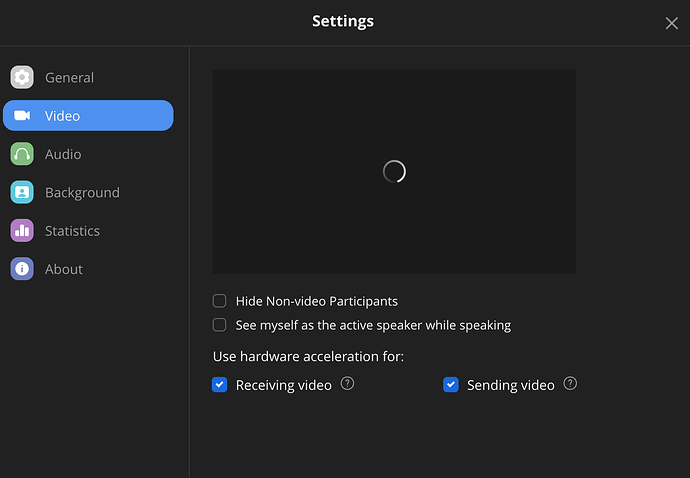
Open the video settings in the app you are using. Select the correct camera from the camera list. Then check the preview window.
In Zoom, Microsoft Teams, Google Meet, and similar services, the camera can be changed inside the meeting settings. The app may have selected a virtual camera, a disconnected webcam, or a disabled device.
Also check the physical privacy shutter. Many laptops have a small slider over the webcam. Some keyboards include a camera privacy key. If the shutter is closed, the screen may show a black image even though the camera is connected.

Camera permissions are blocked on your computer
A webcam can be connected correctly but blocked by the operating system. Privacy controls are designed to stop apps from accessing the camera without permission.
On Windows, review camera privacy settings and allow access for the device and the app. On macOS, check Camera permissions under Privacy and Security settings. Close and reopen the app after changing permission settings.
You should also check:
• Whether the browser has permission to use the camera.
• Whether another app is already using the webcam.
• Whether antivirus software is blocking camera access.
• Whether a work or school administrator has disabled the camera.
• Whether the webcam appears in Device Manager or System Information.
If the webcam works in one app but not another, the camera hardware is probably fine. Focus on that app’s permissions and camera selection.
The camera driver or firmware needs attention
A driver helps your computer communicate with a webcam. Firmware controls part of the camera’s internal operation. If either becomes damaged, outdated, or incompatible, video may stop working.
For a webcam, install drivers only from the camera maker or computer maker. Avoid driver download sites that bundle unknown software.
Useful steps include:
-
Disconnect the webcam.
-
Restart the computer.
-
Connect the webcam directly to a USB port.
-
Test a different USB port.
-
Update or reinstall the webcam driver.
-
Install official camera firmware if the maker provides it.
Do not interrupt a firmware update. Losing power during the process can make the camera unusable.
If the problem began immediately after an update, check whether the system allows you to roll back the driver or install a newer official version. Keep notes about what changed. This makes troubleshooting much faster.
The camera overheats during video recording
Video creates constant work for the camera processor. High-resolution settings, direct sunlight, warm rooms, and long recordings can raise the temperature.
An overheated camera may:
• Refuse to start recording.
• Stop recording without warning.
• Display a temperature symbol.
• Shut down to protect its internal parts.
• Produce corrupted or incomplete video files.
Move the camera to a cool, dry place and turn it off. Remove the battery if the manual recommends doing so. Wait until it returns to normal temperature before testing again.
Reduce the video resolution or frame rate if the camera allows it. For example, switching from 4K to 1080p may reduce heat and power use. Avoid covering ventilation openings, especially on action cameras and webcams.
Never record in direct sunlight for long periods unless the camera is designed for that environment. A car dashboard can become extremely hot and may damage a camera even when it is not recording.
The lens, sensor, or microphone has a hardware fault
If the camera turns on but shows a black, frozen, or distorted video image, the issue may be physical. A camera can sometimes take photos while its video system has a separate fault.
Possible hardware problems include:
• A damaged image sensor.
• A loose internal connection.
• A blocked or damaged lens.
• A faulty memory card slot.
• A broken record button.
• Water or impact damage.
• A failed microphone or audio circuit.
Try taking a photo and recording a short video. Compare the results. If photos look normal but video remains black, the video processing or recording system may be damaged.
Check the lens for fingerprints, dirt, moisture, or a protective film. Clean it gently with a lens cloth. Do not use household glass cleaner.
If the camera was dropped, exposed to water, or repaired before the problem began, professional service may be the safest option. Opening a camera can expose delicate parts and may cancel the warranty.
Reset the camera safely
A settings reset can fix a hidden option or software error. It is useful when the camera supports video but refuses to show the feature after a setting change.
Before resetting, back up your photos and write down important settings. Then look for an option such as:
• Reset All Settings.
• Restore Default Settings.
• Factory Reset.
• Initialize Camera.
A basic settings reset is safer than a full factory reset. Read the manual so you know what will be erased. Some cameras reset the date, time, wireless connections, custom buttons, and image settings.
After the reset, test video in the simplest setup:
• Use Auto mode.
• Insert a charged battery.
• Use a known-good memory card.
• Disconnect extra accessories.
• Record a short clip indoors.
If video works after the reset, change settings one at a time. This helps identify which option caused the problem.
A practical troubleshooting order
When deciding why your camera does not have video, start with simple checks before assuming the camera is broken.
Follow this order:
-
Confirm that the model supports video.
-
Switch to Movie or Video mode.
-
Charge the battery.
-
Check storage space and the memory card.
-
Restart the camera or phone.
-
Review camera and microphone permissions.
-
Select the correct webcam in your computer app.
-
Test another camera app or computer.
-
Update official software, drivers, or firmware.
-
Reset the camera settings.
-
Contact the manufacturer or a qualified repair shop.
This order prevents wasted effort. For example, there is no reason to reinstall a webcam driver if the camera does not support video. There is also no need to reset a phone if the Camera app simply lacks permission.
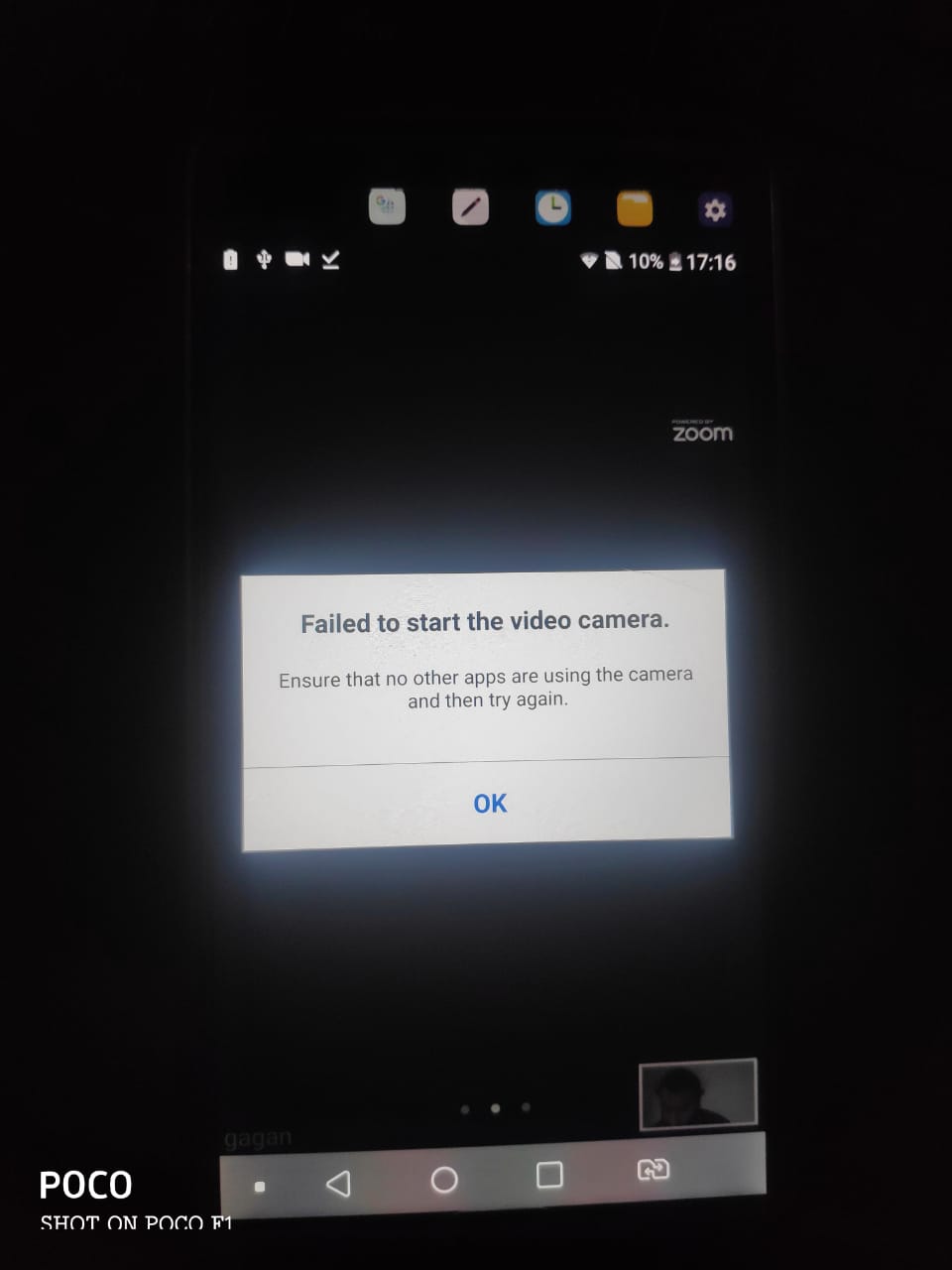
Take note of error messages. Words such as Card Error, Camera Busy, Temperature Warning, or Cannot Start Recording can point directly to the cause.
How to prevent video recording problems
Once you solve the problem, a few habits can help prevent it from returning.
• Keep the camera firmware and computer drivers current.
• Use reliable, compatible memory cards.
• Format cards in the camera after backing up files.
• Keep batteries charged before important recordings.
• Carry a spare battery for events and travel.
• Avoid extreme heat, moisture, dust, and direct sunlight.
• Keep the lens clean and protected.
• Eject storage devices safely.
• Do not remove the memory card while recording.
• Test the camera before a meeting, class, interview, or trip.
One lesson I have learned from troubleshooting cameras is to test the entire setup, not just the camera. A camera may work perfectly while the card, cable, app, permission, or power source causes the failure.
Make a short test recording before an important event. Play it back with sound. This checks the lens, storage, microphone, battery, and video file at the same time.
When to contact support or replace the camera
Contact the manufacturer when the camera still cannot record video after basic troubleshooting. Have the model number, purchase date, operating system, error message, and steps you already tried ready.
Professional repair may be worthwhile when:
• The camera is expensive.
• It is still under warranty.
• The fault followed a minor software issue.
• Replacement parts are available.
Replacement may make more sense when:
• The camera is very old.
• It never supported video.
• Repair costs approach the price of a new camera.
• The sensor or main circuit has failed.
• The camera uses an outdated storage format.
Do not continue using a camera that smells burnt, becomes unusually hot, swells, or shows signs of liquid damage. Disconnect power and seek qualified help. Safety is more important than saving a recording.
Frequently Asked Questions About Why Does My Camera Not Have Video
Why does my camera take pictures but not record video?
The camera may not support video, or it may be in photo mode. A full memory card, low battery, overheating, or a damaged recording system can also prevent video.
How do I turn on video mode on my camera?
Look for a Movie mode, Video mode, or video camera icon on the mode dial or screen. On a phone, open the Camera app and swipe to Video.
Why is the video option missing on my phone?
The Camera app may be restricted, outdated, or affected by a software problem. Check camera permissions, restart the phone, update the system, and test another camera app.
Why does my webcam work in one app but not another?
The second app may not have camera permission or may be using the wrong camera. Open its video settings, choose the correct webcam, and allow camera access in the operating system.
Can a memory card stop a camera from recording video?
Yes. A full, damaged, incompatible, or slow memory card can prevent video recording. Back up your files and test a compatible card with enough free space.
Why does my camera stop recording after a few minutes?
Overheating, low battery, limited storage, or a slow memory card can cause recording to stop. Lower the video resolution, cool the camera, charge the battery, and test another card.
Can a software update fix a camera with no video?
Sometimes. An official update may repair a driver, app, or firmware error. However, software cannot add video support to a camera that was built only for still photos.
Conclusion
The answer to “why does my camera not have video” usually comes down to camera compatibility, the wrong mode, storage, power, permissions, software, heat, or hardware damage. Start with the easiest checks: confirm video support, select Movie mode, charge the battery, inspect storage, and test the camera in another app or device.
Work through the steps in order and avoid changing many settings at once. With a short test clip and a careful check of the camera’s manual, you can often find the cause quickly. If these steps do not help, contact the manufacturer or a trusted repair professional, and share your camera model and error message in the comments for more troubleshooting ideas.
Recent Posts
Parts of a 35mm Camera: Complete Guide to Every Key Part and Its Function
Learn the parts of a 35mm camera, what each part does, and how the lens, shutter, film chamber, viewfinder, and controls work together.
Parts of a Camera Canon: A Complete Guide to Canon Camera Parts and Functions
Learn the parts of a Canon camera, what each part does, and how the lens, sensor, shutter, controls, viewfinder, and screen work together.