
Introduction
Using a vlogging camera is simple once you set up four things: video quality, focus, sound, and light. In the United States, most new vloggers can start with a small mirrorless camera, compact camera, or modern smartphone-style camera with a flip screen. The best setup is the one you can carry, control, and use often.
This guide explains how to use a vlogging camera for YouTube, TikTok, Instagram, travel videos, tutorials, and live-style updates. You will learn how to choose basic settings, frame yourself, record clear audio, avoid common errors, and move files to a computer or phone.
What Is a Vlogging Camera?
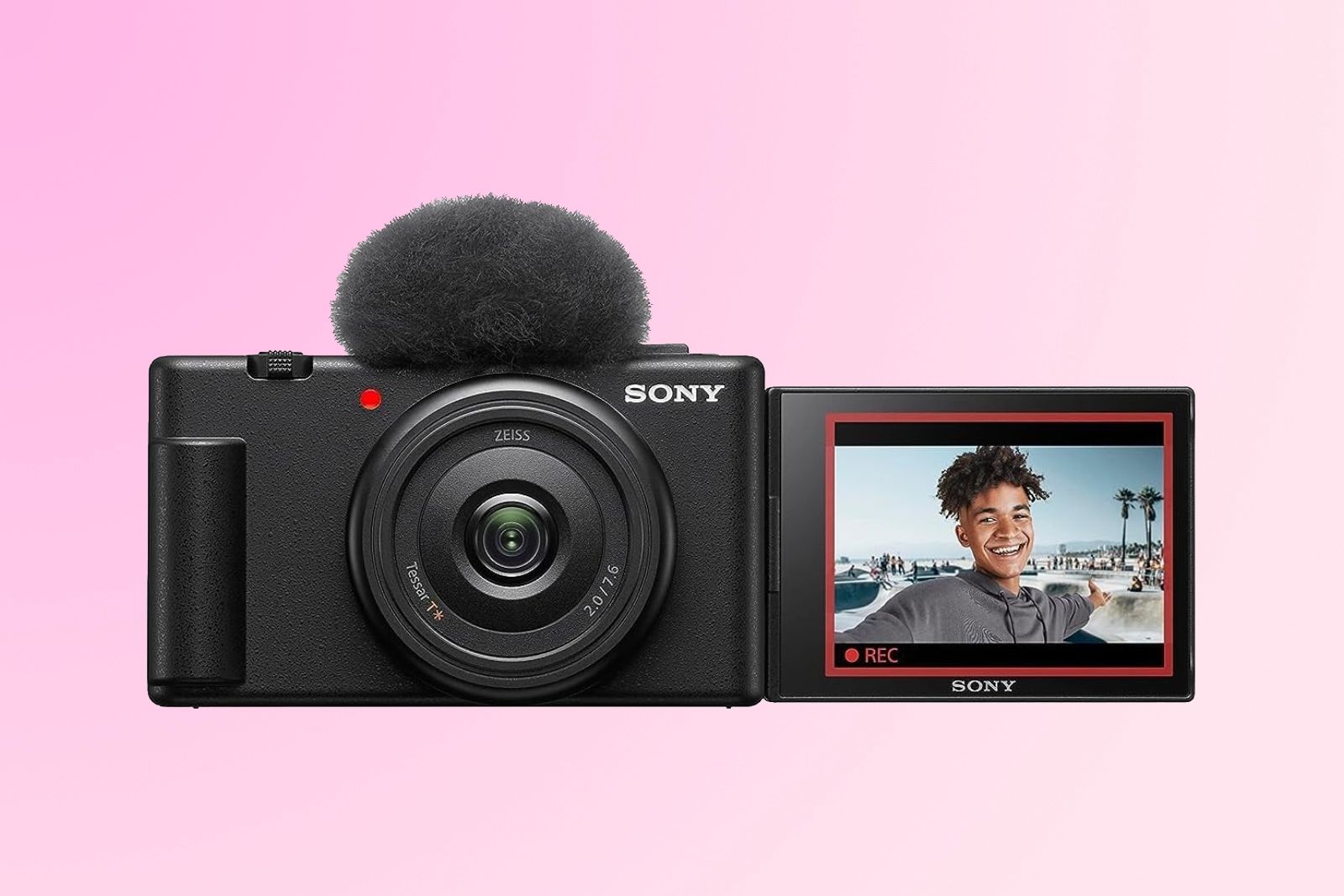
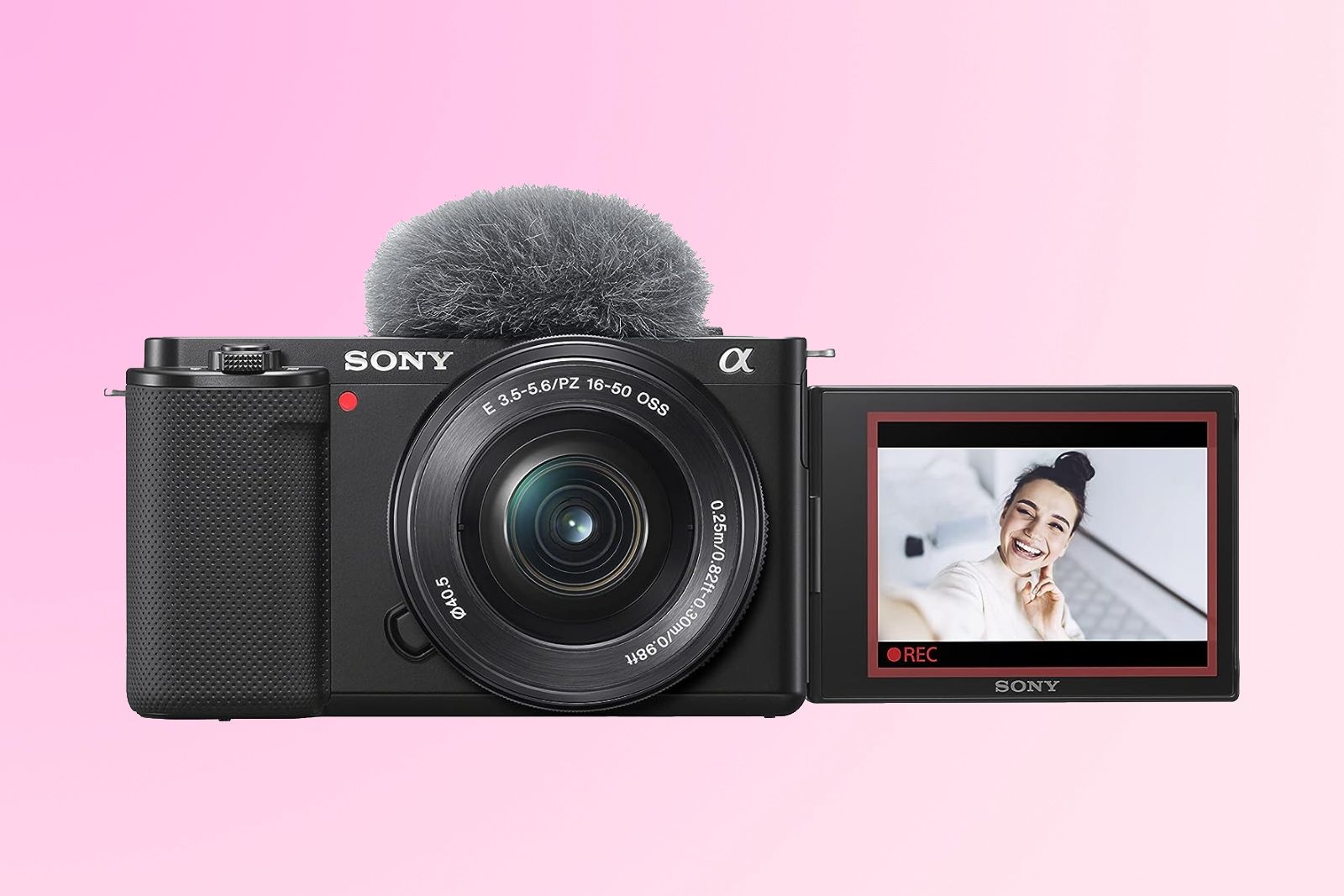
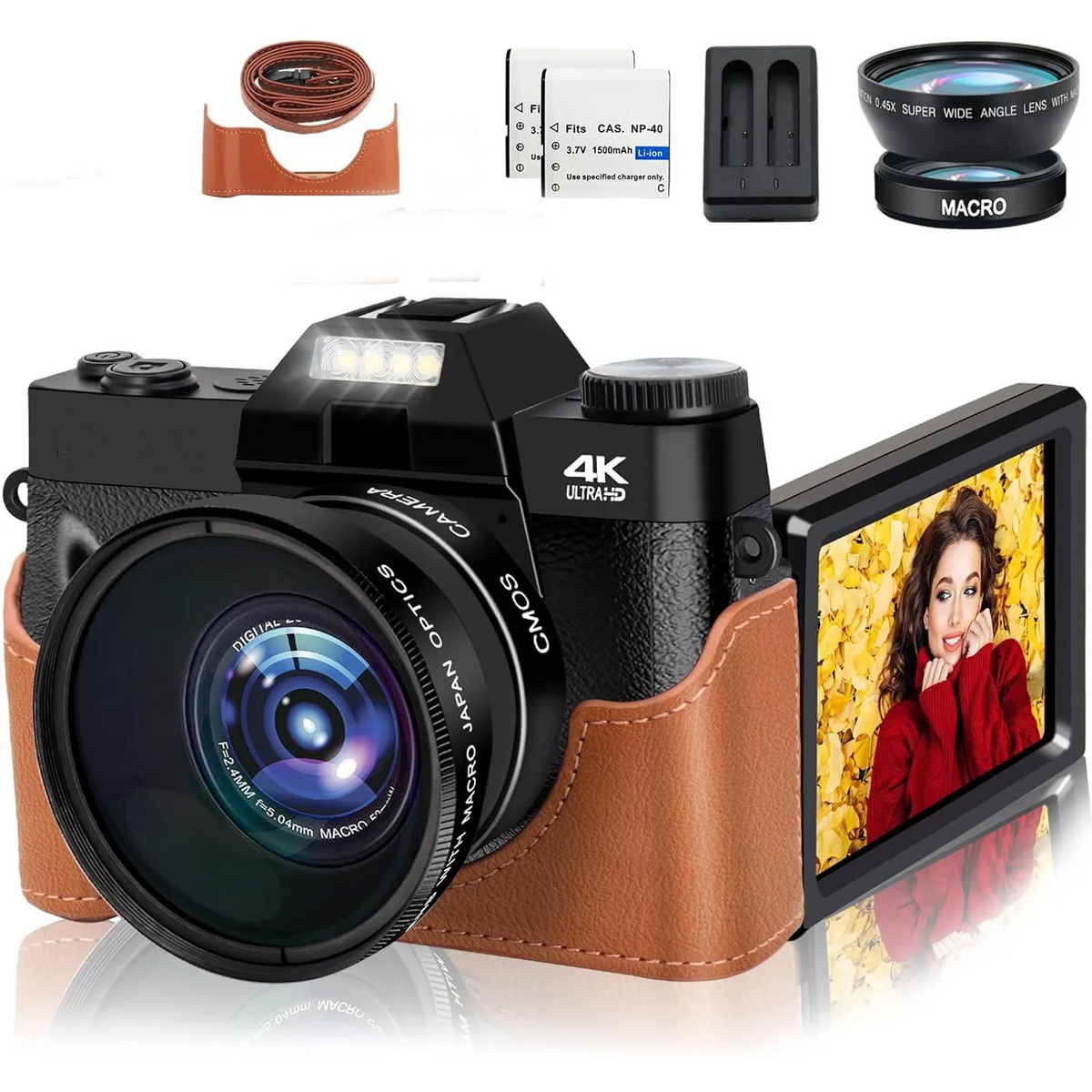
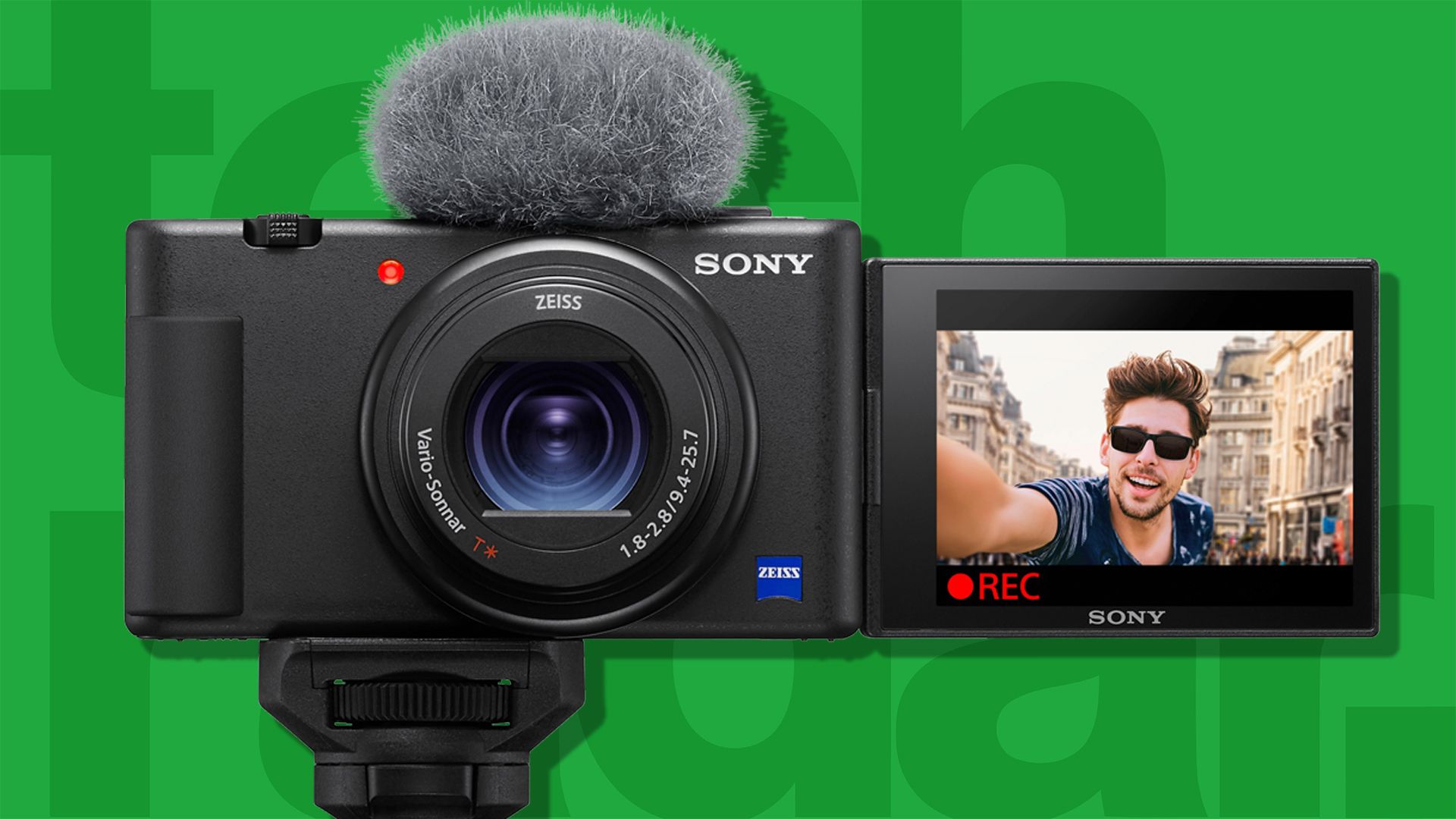
A vlogging camera is a camera designed to record a person while they speak to the lens. Common features include:
- A flip-out or tilting screen
- Fast autofocus
- A built-in microphone
- A small body
- Video stabilization
- A wide or flexible lens
- A simple way to transfer video files
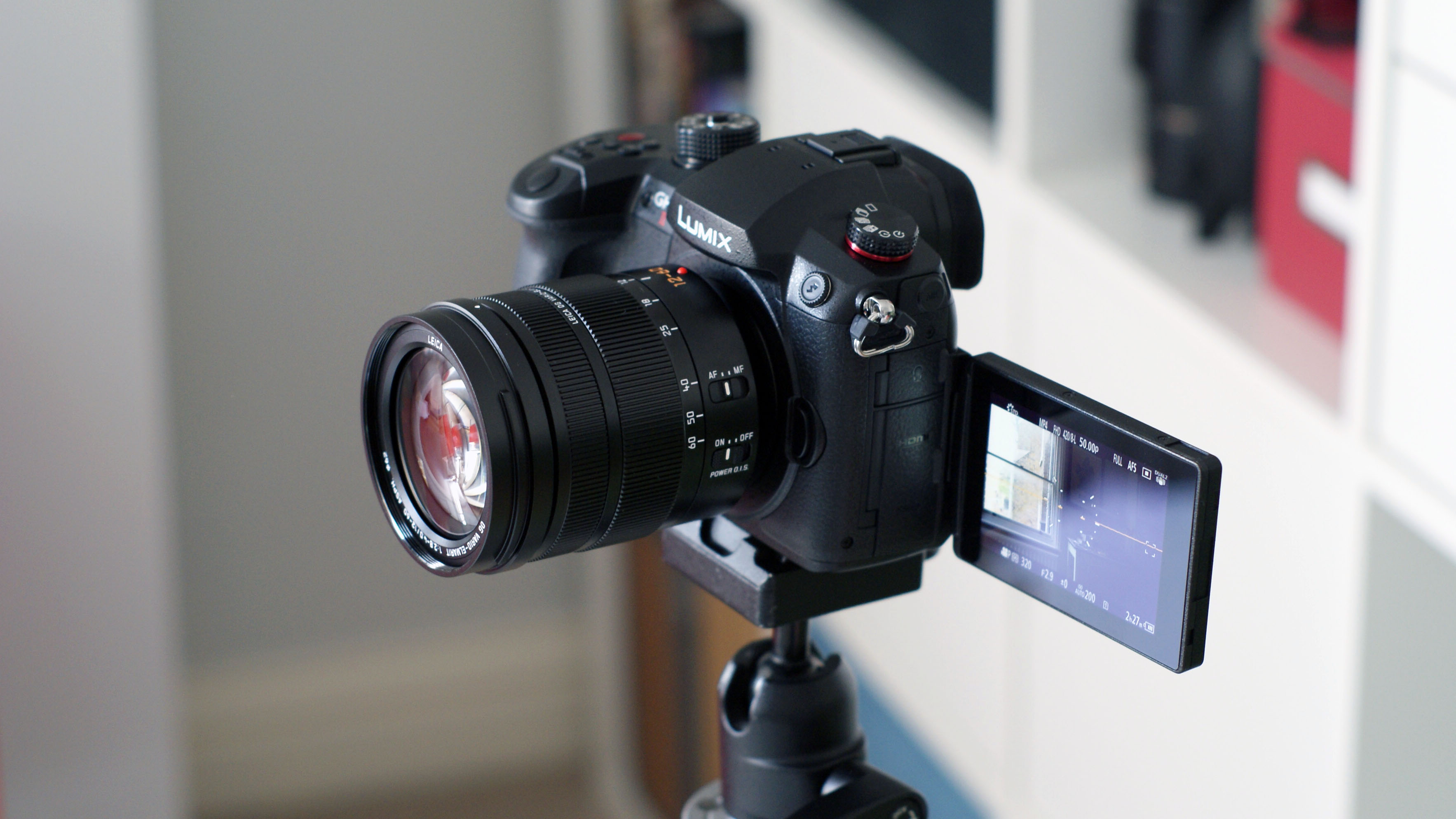
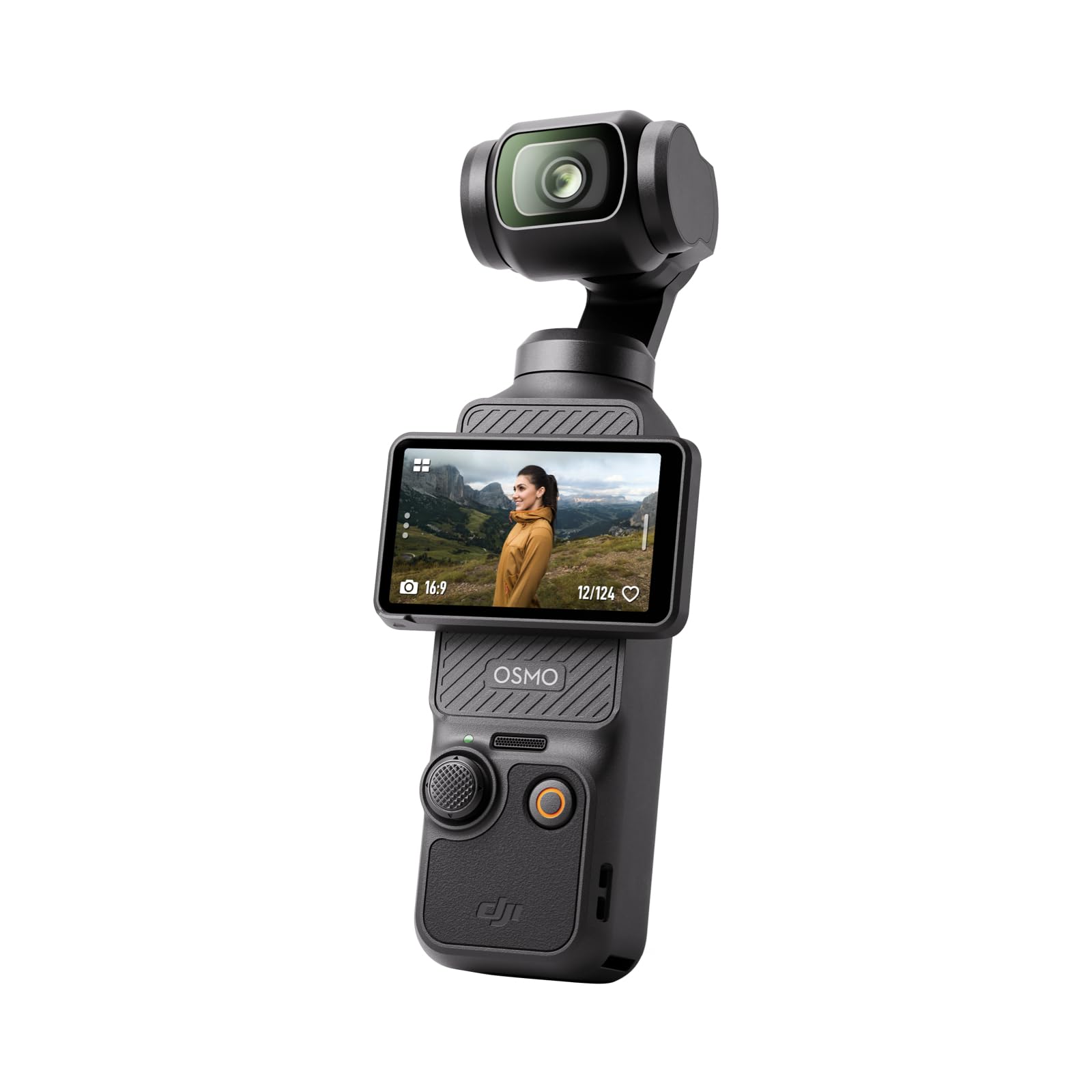
A vlogging camera may be a compact camera, mirrorless camera, action camera, or interchangeable-lens camera. Each type has a different strength.
| Camera type | Best for | Main benefit | Main limit |
|---|---|---|---|
| Compact camera | Travel and daily vlogs | Small and easy to use | Fewer lens choices |
| Mirrorless camera | YouTube and professional video | Better control and image quality | Costs more and needs more setup |
| Action camera | Sports and outdoor clips | Strong stabilization and rugged design | Smaller sensor and less control |
| Smartphone | Casual and quick videos | Always available | Less control over lenses and sound |
The camera body is only part of the system. The lens controls the view. The microphone captures sound. The battery powers the camera. The memory card stores your clips. A weakness in any one of these parts can reduce the quality of the final video.

What You Need Before You Record
Before you use a vlogging camera, prepare the camera, lens, battery, memory card, and audio source. You do not need a large kit to begin.
Basic equipment
Start with:
- A charged battery
- A compatible memory card
- A lens suited to your space
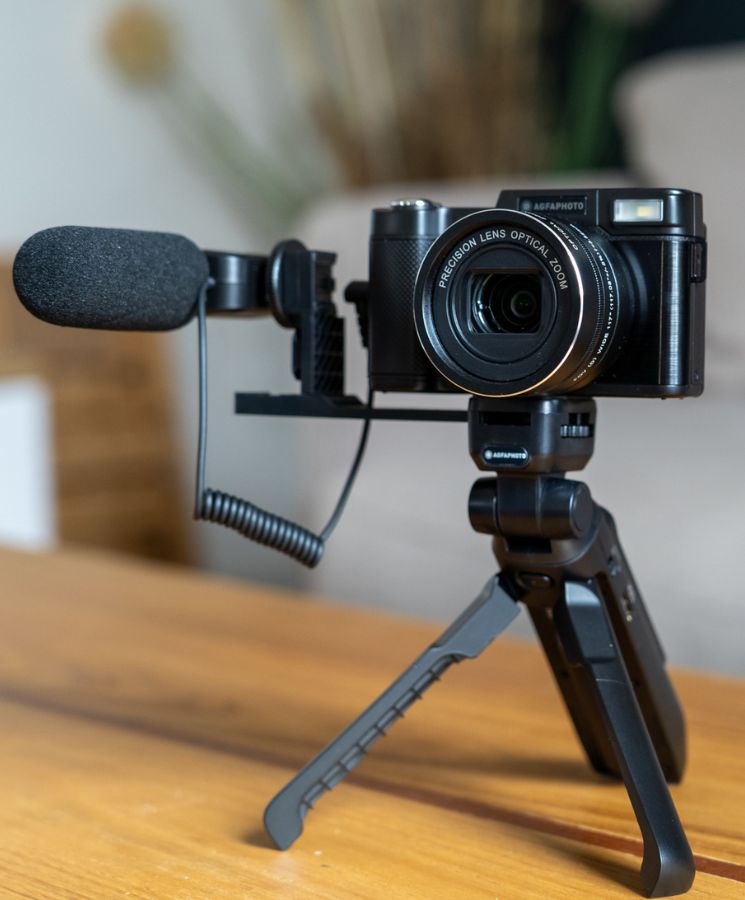
- A small tripod or grip
- A windscreen for the microphone
- A USB cable or card reader
- A light source, when needed
Check the camera manual for the correct memory card type and speed. Some cameras need a fast card for high-bitrate 4K video. A card that is too slow may stop recording or show an error.
Format the memory card inside the camera before important shoots. First copy any files you want to keep. Formatting deletes the card’s contents.
Set the date, time, and file format
Set the correct date and time. This helps you sort clips later. Select a video file type supported by your editing program. Most cameras offer common formats such as MP4 or MOV.
Use the highest quality setting that your computer, phone, storage, and editing software can handle. High-resolution video uses more storage and may take longer to edit.
Clean the lens
A small fingerprint can make a video look soft or hazy. Use a clean microfiber cloth made for camera lenses. Do not use a rough shirt or paper towel.
Check your recording space
Look at the background before you press Record. Remove items that distract from the subject. Keep private documents, home addresses, license plates, and other sensitive details out of view.
How to Set Up a Vlogging Camera
The easiest beginner setup uses video mode, continuous autofocus, a natural frame rate, and an external microphone when possible.
1. Set the video mode
Turn the camera to video mode. If the camera has a dedicated video setting, use it. This prevents photo settings from affecting the recording.
2. Choose resolution and frame rate
Resolution describes the number of pixels in the image. Frame rate describes how many frames the camera records each second.
Common choices include:
- 1080p at 30 frames per second: Good for simple videos and smaller files
- 4K at 24 or 30 frames per second: Better detail and more room to crop
- 60 frames per second: Useful for smooth motion or slow-motion editing
For a first vlog, 1080p at 30 fps is easy to edit. Use 4K when you need extra detail or want to crop the frame. Confirm that your computer and editing program can handle the larger files.
3. Set the shutter speed
For natural-looking motion, use a shutter speed near twice the frame rate:
| Frame rate | Common shutter speed |
|---|---|
| 24 fps | 1/50 second |
| 30 fps | 1/60 second |
| 60 fps | 1/125 second |
These are practical starting points, not strict rules. Very fast shutter speeds can make motion look sharp and harsh. Very slow shutter speeds can create unwanted blur.
4. Choose an aperture
Aperture controls the lens opening. A wide aperture, such as f/1.8 or f/2.8, lets in more light and can blur the background. A smaller opening, such as f/5.6, keeps more of the scene in focus.
If you are new to video, use an aperture that gives you enough focus room. A very wide aperture can make your face go out of focus if you lean forward or backward.
5. Set ISO carefully
ISO controls the camera’s sensitivity to light. A higher ISO can brighten a dark scene, but it may also add grain or noise.
Use the lowest ISO that gives you a bright image. Add light before raising ISO when possible. A window, lamp, or small LED light can improve the image more than a large increase in ISO.
6. Turn on face and eye autofocus
Enable face detection and eye detection if your camera provides them. Use continuous autofocus for a talking-head vlog. Test the feature before filming a full video.
Autofocus can struggle when:
- Objects move close to the lens
- The scene is very dark
- The background has strong patterns
- The camera cannot detect your face
- You hold an object over your face
If autofocus keeps hunting, increase the light, move away from a busy background, or switch to manual focus after setting your position.
7. Set white balance
White balance helps keep colors natural. Auto white balance works well in many changing conditions. A fixed setting can be better when the light stays the same.
If skin tones change during one clip, avoid mixing several light sources. For example, daylight from a window and a strong blue-white indoor lamp can create uneven color.
8. Turn on stabilization when useful
Stabilization reduces small camera movements. Optical or sensor stabilization helps with handheld walking shots. Electronic stabilization may crop the image or reduce the field of view.
For a camera on a tripod, turn stabilization off if the camera manual recommends doing so. Some systems can create small unwanted movements when stabilization runs on a locked camera.
How to Frame Yourself for a Vlog
Place the camera near eye level and leave a small amount of space above your head. Look at the lens, not the image on the screen, when you speak.
For a seated video, place the camera slightly farther than arm’s length. Use a wide lens if the room is small. A lens that is too tight may cut off your head or force the camera too close to your face.
Use the rule of thirds as a starting point. Put your eyes near the upper third of the frame. This gives the shot a balanced look without making the composition feel rigid.
Watch the background. Straight lines, bright windows, and strong colors draw attention. Turn off ceiling lights that create hard shadows if a window or soft lamp gives better light.
For a handheld vlog, hold the camera with two hands when possible. Keep your elbows near your body. A small grip or mini tripod can improve stability and give you more control.
Record a short test clip
Record 10 to 20 seconds before the main take. Check:
- Is your face in focus?
- Is the image bright enough?
- Is your voice clear?
- Is the background free of private information?
- Does the camera show the full frame?
- Is there enough storage space?
This test can prevent the most frustrating failure: filming a long video with no usable sound or focus.
How to Get Clear Audio
Clear sound often matters more than a sharper image. Viewers may forgive a basic picture, but they may stop watching if they cannot understand your voice.
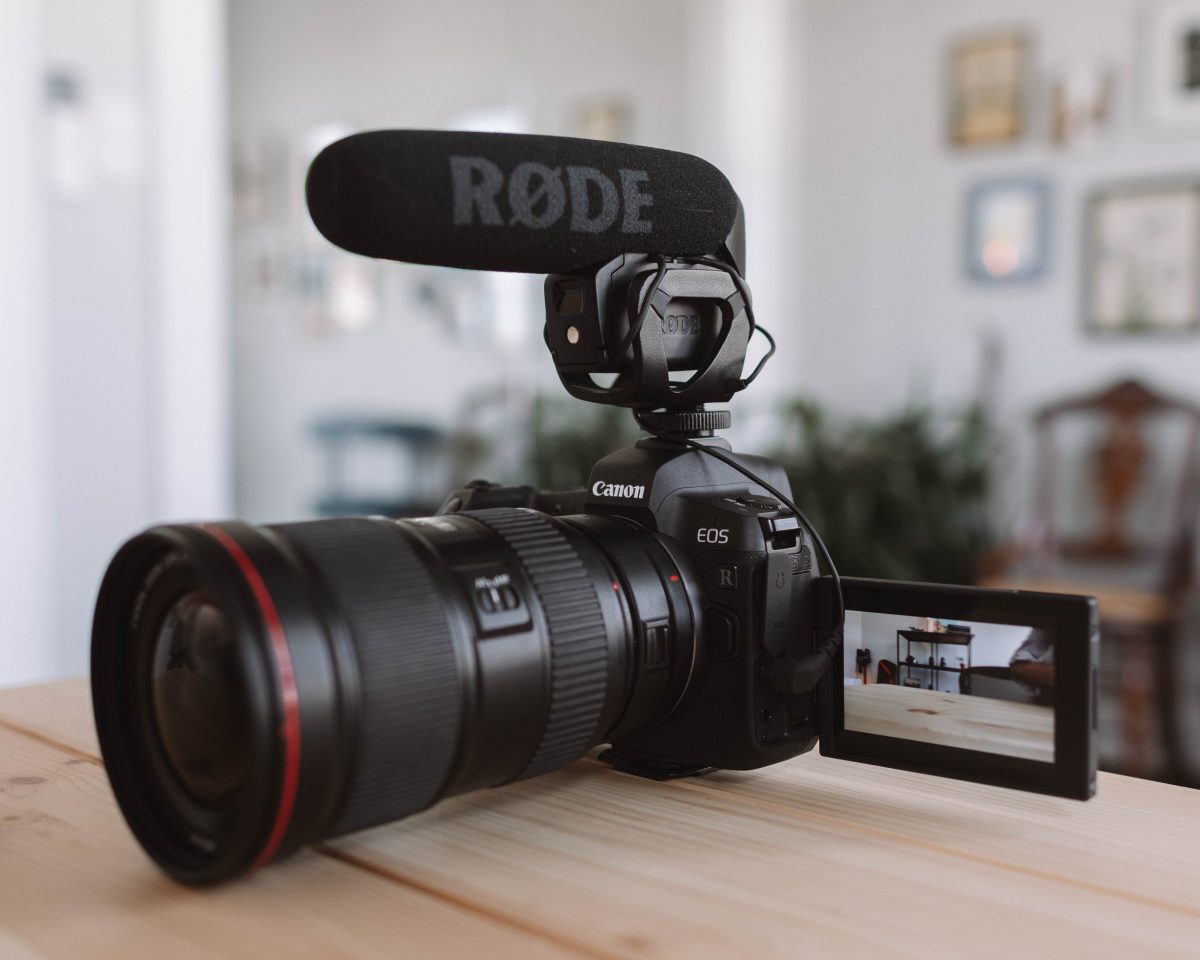
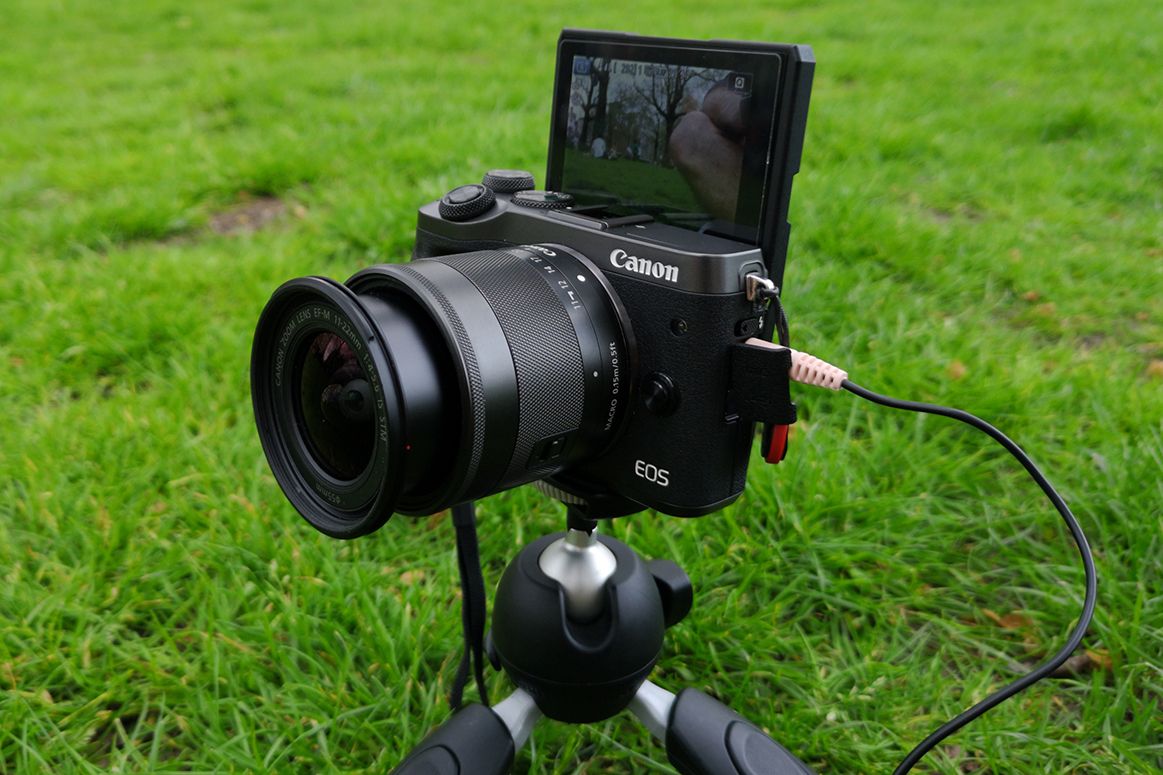
A built-in microphone can work in a quiet room. It performs less well outdoors, in traffic, or when the camera is far away. An external microphone placed closer to your mouth usually gives a stronger improvement than upgrading the camera.
Common microphone choices include:
- On-camera microphone: Simple and useful for close-range filming
- Lavalier microphone: Clips near your shirt and keeps a steady distance
- Wireless microphone: Useful when you move away from the camera
- Shotgun microphone: Captures sound from the direction it faces
Use a windscreen outdoors. Wind can overload a microphone and create loud bursts that are hard to repair.
Before recording, monitor the audio with headphones if the camera supports headphone monitoring. Keep voice levels below the camera’s maximum level. Clipped audio sounds harsh and usually cannot be fully repaired.
Record a short test when you change rooms, microphones, or cable connections. Listen for:
- Humming
- Crackling
- Clothing rubbing on a lavalier microphone
- Wind noise
- Low volume
- A loose plug
- Audio recorded on only one channel
If your camera has manual audio levels, adjust them so normal speech has room below the maximum level. The exact meter target differs by camera, so use the manual and a test recording as your guide.
How to Use Light for Better Video
Put the main light in front of you or slightly to one side. A window can work well if the light is soft and even. Do not place a bright window directly behind you unless you want a dark silhouette.
Soft light creates smoother shadows. You can soften a lamp with a diffuser designed for that light. Do not cover a hot lamp with cloth or paper. Keep lights away from curtains and other items that can catch fire.
A simple indoor setup can use:
- A window or soft light in front of you
- A plain or tidy background behind you
- A second small light only if one side of your face is too dark
Avoid mixing lights with very different colors. Mixed light can make one side of your face look blue and the other side look orange.
If the image looks too bright, move farther from the light, reduce exposure, or use a smaller aperture. If it looks too dark, add light before raising ISO.
How to Record a Vlog Step by Step
Use this process each time you film:
- Charge the battery and insert a formatted memory card.
- Clean the lens.
- Choose the video resolution and frame rate.
- Set the camera on a stable surface or hold it with a grip.
- Frame the shot and check the background.
- Turn on face and eye autofocus.
- Connect and test the microphone.
- Record a short test clip.
- Check focus, brightness, and sound.
- Press Record and wait a few seconds before speaking.
- Speak in short sections instead of trying to make one perfect take.
- Stop recording and check that the file was saved.
Pause for a moment before and after each section. These extra seconds make editing easier. If you make a mistake, pause, repeat the sentence, and continue. You do not need to restart the entire video.
For a walking vlog, test stabilization before a long take. Keep the lens clear, avoid sudden turns, and watch for traffic, stairs, bicycles, and other hazards. Do not look only at the camera screen while moving.

How to Transfer and Organize Vlog Files
After recording, copy the files to a computer, tablet, or phone. Use a card reader or the camera’s USB connection. The camera manual will identify the correct USB mode.
Do not edit the only copy of an important video. Keep the original files on the memory card until you confirm that the transfer worked. For important projects, keep a second backup on a separate drive or trusted cloud service.
Use clear file names and folders. For example:
2025-03-Travel-Vlog/
  Original-Clips/
  Audio/
  Project/
  Exports/
Video files can be large. A short 4K clip may use much more storage than a 1080p clip. Check your available space before filming.
When you edit, remove long pauses, repeated lines, and unusable clips. Balance the audio before adding music. Keep background music low enough that viewers can understand your voice.
Export the final video in a format supported by the platform where you plan to publish it. YouTube, Instagram, TikTok, and other services may change their upload specifications, so check the platform’s current help page before exporting a large project.

Common Vlogging Camera Problems and Fixes
The video is blurry
Check whether the lens is dirty. Then confirm that autofocus detects your face and that the camera is not focused on the background. More light can also help autofocus work better.
If the camera focuses correctly but your movement looks blurred, check the shutter speed. A shutter speed that is too slow may cause motion blur.
The video is too dark or too bright
Check the exposure. Move the subject closer to a light source. Avoid placing a bright window behind you. If the camera changes brightness during the clip, try exposure lock or manual exposure.
The camera stops recording
Possible causes include a full memory card, a low battery, an unsupported card, excessive heat, or a file-size limit. Stop the camera and let it cool if it becomes hot. Do not block vents, and follow the manufacturer’s temperature guidance.
The sound is missing
Check whether the microphone is connected fully. Confirm that the camera is using the external microphone rather than its built-in microphone. Review the audio settings and play the test file before filming again.
The footage looks shaky
Use a tripod, grip, or gimbal when appropriate. Turn on stabilization for handheld footage if the camera supports it. Walk slowly and keep both hands on the camera.
The camera runs out of power
Carry a charged spare battery or a power bank that the camera supports. Some cameras can run from USB power, but the correct cable, power source, and operating conditions vary by model. Check the manual before relying on USB power for a long shoot.
Common Mistakes to Avoid
New vloggers often focus on camera resolution and overlook sound, light, and planning. Avoid these mistakes:
- Recording without checking the microphone
- Using a memory card that is too slow
- Holding the camera too far from the face
- Standing with a bright window behind you
- Using a very wide aperture without checking focus
- Leaving stabilization on when the camera is locked down, if the manual advises against it
- Filming one long take with no backup
- Ignoring heat warnings
- Looking at the screen instead of the lens
- Publishing private information in the background
- Using copyrighted music without permission or a suitable license
Respect privacy when filming in public places in the United States. Rules can vary by location and situation. Avoid recording private conversations or sensitive areas without understanding the applicable law. For commercial work, events, minors, or restricted locations, ask for permission and review the relevant rules before filming.
A Simple Beginner Setup
For a basic indoor vlog, use these settings as a starting point:
| Setting | Starting choice |
|---|---|
| Resolution | 1080p or 4K |
| Frame rate | 24, 30, or 60 fps |
| Shutter speed | About twice the frame rate |
| Focus | Face and eye autofocus |
| White balance | Auto for changing light |
| Stabilization | On for handheld use |
| Audio | External microphone when possible |
| Camera position | Eye level |
| Lighting | Soft light in front of you |
Change one setting at a time. This makes it easier to learn what each control does. Save a custom video mode if your camera supports it.
The best beginner workflow is not the most complex one. It is the one that helps you record clear, stable, well-lit video without missing the moment.
Frequently Asked Questions
Can I use a regular camera for vlogging?
Yes. Any camera that records video can work if it gives you usable focus, sound, battery life, and framing. A flip screen and microphone input make vlogging easier, but they are not required.
Should I vlog in 4K or 1080p?
Use 4K when you want more detail or room to crop. Use 1080p when you want smaller files and faster editing. Your choice should match your computer, storage, editing software, and publishing needs.
Do I need an external microphone?
Not always. The built-in microphone may be enough in a quiet room with the camera close to you. An external microphone becomes more useful when you film outdoors, move around, or place the camera several feet away.
What lens is best for vlogging?
A wide lens is often useful for handheld vlogging because it shows more of the scene and makes small movements less noticeable. The correct choice depends on the camera sensor, room size, and distance between you and the camera.
How long should a vlog be?
A vlog should be long enough to deliver its subject without slow sections. Record more material than you need, then remove pauses and repeated points during editing. Viewer interest matters more than a fixed run time.
Conclusion
To use a vlogging camera well, start with reliable basics: charge the battery, format the card, clean the lens, set the frame rate, test autofocus, and check the sound. Place the camera near eye level and use soft light in front of you.
Record a short test before every important session. That small step can catch poor focus, weak audio, bad exposure, and empty storage before they become larger problems. As you gain practice, learn manual exposure, improve your lighting, and build a repeatable file and backup system.
Your next step is simple: record a 20-second test clip, watch it with sound, and adjust only the setting that needs improvement.
Recent Posts
Learn how to get a free vlogging camera through giveaways, sponsorships, and creator programs. Start filming quality content without the high cost.
How much does a vlogging camera cost? Explore price ranges, key features, and smart buying tips to find the best camera for your budget.