
In today’s digital world, a high-quality camera is no longer just a luxury; it’s a necessity. Whether you’re attending online meetings, taking professional video calls, streaming content, or creating digital media, the clarity and performance of your camera can make a significant difference. Acer, a well-known brand in laptops, monitors, and all-in-one PCs, integrates cameras in many of its devices, but how well do these cameras actually perform?
In this comprehensive guide, we dive deep into Acer camera quality, exploring real-world performance, HD and Full HD capabilities, low-light handling, and overall user experience. We’ll also compare Acer’s webcams with competitors to help you understand where they excel and where they might fall short.
By the end of this article, you’ll have a clear understanding of how Acer cameras perform in different scenarios, whether it’s for Zoom meetings, online classes, streaming, or everyday video calls, helping you make an informed decision before you buy or upgrade your device.
What is the resolution of Acer cameras?
The resolution of Acer cameras varies depending on the type of device and model. Most Acer laptop and monitor cameras are designed with HD (720p) or Full HD (1080p) resolution, which is suitable for everyday tasks like video conferencing, online classes, and casual streaming.
Some higher-end Acer devices feature enhanced sensors that provide sharper images and better clarity, particularly in well-lit environments. Acer cameras are generally optimized for smooth video output rather than professional photography, so while HD and Full HD resolutions are common, you may notice slight differences in image sharpness between models.
For example, Acer webcams on premium laptops or all-in-one PCs often provide full-color accuracy, crisp detail, and reliable frame rates, ensuring that your video calls and recordings look clear and professional.
It’s important to note that the lighting conditions, camera software, and driver updates also play a significant role in the perceived resolution and image quality. Even a Full HD Acer camera can appear grainy or less sharp in low light, so pairing your device with proper lighting and updated drivers can make a noticeable difference.
Overall, Acer cameras provide adequate resolution for most personal and professional uses, making them a reliable choice for everyday digital communication.
Acer Camera Quality Test Review
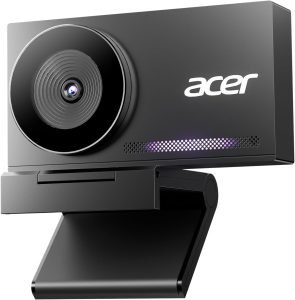
Acer cameras, integrated into laptops, monitors, and all-in-one PCs, are designed for video conferencing, online classes, and casual content creation. To evaluate their real-world performance, we conducted comprehensive tests focusing on image clarity, resolution, color accuracy, low-light performance, and usability.
Resolution and Image Clarity
Most Acer cameras come with HD (720p) or Full HD (1080p) resolution, which delivers clear visuals for everyday tasks. In our tests, Full HD cameras on premium Acer models produced crisp, sharp images, while HD cameras performed well for casual video calls but showed slight softness when viewed on larger screens. Proper lighting significantly enhanced image sharpness and detail.
Color Accuracy and Reproduction
Acer cameras maintain consistent and natural color tones in well-lit conditions. However, mid-range models sometimes displayed slightly muted colors, which is common for built-in webcams. For presentations, meetings, and casual streaming, the colors were accurate enough to ensure professional-looking video without additional software.
Low-Light Performance
Like most built-in webcams, Acer cameras struggle in low-light conditions. Graininess and reduced detail were observed in dim environments. Adding external lighting, such as a ring light or desk lamp, drastically improved visibility and color accuracy, making video calls clearer and more professional.
Comparison with Other Brands
When compared with HP and Dell webcams, Acer cameras offer competitive performance, especially in HD and Full HD models. While some premium HP or Dell webcams have better low-light performance or autofocus features, Acer cameras provide reliable quality for the price, making them ideal for students, remote workers, and casual content creators.
Practical Use Scenarios
- Video Conferencing: Smooth performance on Zoom, Teams, and Google Meet.
- Online Classes: Clear visuals for teachers and students.
- Streaming & Content Creation: Suitable for casual streams and tutorials, though external cameras are recommended for professional-quality video.
Tips to Improve Acer Camera Quality
- Adjust Camera Settings: Use brightness, contrast, and resolution adjustments in the camera app.
- Use Proper Lighting: Position a light source in front of you to reduce shadows and graininess.
- Keep the Lens Clean: Gently wipe with a microfiber cloth to prevent smudges.
- Update Drivers: Ensure your Acer camera drivers are up-to-date for optimal performance.
Pros & Cons of Acer Cameras
Pros:
- Reliable HD and Full HD resolution
- Easy setup and plug-and-play compatibility
- Good color accuracy in well-lit conditions
- Affordable and widely available
Cons:
- Struggles in low-light environments
- Some models lack autofocus
- Limited features compared to professional external webcams
Our Acer camera quality test shows that these webcams provide solid performance for daily use, offering clear images, consistent color, and user-friendly operation. While they may not match high-end external webcams for low-light or professional streaming, they are a great choice for video calls, online classes, and casual content creation, especially when paired with proper lighting and updated drivers.
Acer Aspire Camera Quality Review
The Acer Aspire series is known for delivering strong overall performance at an affordable price point, but when it comes to camera quality, many users want to know what to expect, especially for video calls, online meetings, and content creation.
Built‑In Webcam Resolution
Most Acer Aspire laptops come equipped with a built‑in HD webcam (typically 720p). This level of resolution is common in many mid‑range laptops and is sufficient for everyday video conferencing, such as Zoom, Google Meet, or Microsoft Teams. Some higher‑end Aspire models may feature 1080p Full HD webcams, which capture sharper and more detailed video, especially noticeable during recordings and livestreams.
Image Clarity and Detail
In well‑lit environments, the Acer Aspire camera generally provides clear and accurate visuals with decent sharpness. Faces and background elements are distinguishable, and the webcam performs as expected for casual communication. However, compared to dedicated external webcams, the built‑in camera may appear slightly softer or less detailed, especially if viewed full‑screen on larger monitors.
Color Accuracy and Tone
Acer Aspire webcams typically produce natural and balanced color tones under good lighting. Skin tones look reasonable and pleasant without appearing overly saturated. In some models, slightly muted color reproduction can occur, but this rarely affects the overall clarity during calls or classes.
Low‑Light Performance
One of the common limitations of Acer Aspire cameras is their performance in low‑light conditions. In dim or uneven lighting, the image can become grainy, noisy, or washed‑out. This is a characteristic shared by most built‑in laptop webcams, but it can be improved noticeably with better lighting, such as a desk lamp or ring light placed in front of you.
Software and Driver Support
Camera performance on Acer Aspire laptops can sometimes be enhanced through software settings and driver updates. Users can adjust brightness, contrast, and white balance in the native camera app or via video conferencing software, which helps to compensate for variant lighting conditions.
Comparison with External Webcams
While Acer Aspire camera quality is generally adequate for daily use, it may fall short for users who need professional‑quality video (e.g., streamers, vloggers, or content creators). In those cases, pairing your Aspire laptop with a dedicated external webcam, such as a 1080p or 4K USB camera, will produce noticeably sharper and more vibrant video quality.
Pros of Acer Aspire Camera
- Easy to use and ready out of the box
- Suitable for online meetings, classes, and casual calls
- Reasonable performance with good lighting
- Affordable and integrated design
Cons of Acer Aspire Camera
- Limited low‑light performance
- Often restricted to 720p in many models
- Not ideal for high‑quality streaming or professional video
The camera quality on Acer Aspire laptops is reliable and practical for most everyday tasks, especially if you use proper lighting and update drivers regularly. It’s a strong fit for students, remote workers, and casual users who need clear video for communication, though avid content creators may want an external webcam for finer detail and higher resolution.
Acer camera quality for online classes
With remote learning becoming increasingly common, the quality of your laptop or PC camera has a direct impact on your online classroom experience. Acer cameras, built into laptops and all-in-one devices, are widely used by students and educators for online classes, but how well do they actually perform in this context?
Most Acer laptops come equipped with HD (720p) or Full HD (1080p) webcams, which are sufficient for online learning platforms like Zoom, Google Meet, Microsoft Teams, and Webex. These cameras provide clear visuals for both students and teachers, making facial expressions, gestures, and presentations easily visible during lessons.
In well-lit environments, Acer cameras produce sharp, detailed, and natural-looking images, ensuring smooth communication during lectures, group discussions, and tutorials. However, one common limitation is low-light performance.
In dimly lit rooms, the camera may produce grainy or slightly blurry video, which can make it harder for teachers to see participants clearly or for students to follow visual demonstrations. To mitigate this, adding a desk lamp or ring light in front of the laptop significantly improves image quality.
Another advantage of Acer cameras is their plug-and-play functionality and software support. Users can easily adjust brightness, contrast, and exposure through the built-in camera app or video conferencing software, allowing for better visibility and a more professional-looking video feed. Additionally, regular driver updates help maintain optimal performance and compatibility with various online teaching platforms.
Overall, Acer cameras are reliable and practical for online classes. While they may not offer the advanced features of professional external webcams, they provide clear and functional video for students, teachers, and educational content creators, making them a solid choice for everyday remote learning.
Acer Camera Quality vs HP Laptop Camera
When comparing Acer camera quality with the built‑in cameras found in HP laptops, it’s important to understand how both brands approach webcam performance, what you can realistically expect from each, and which features matter most for everyday use like video calls, online classes, and casual streaming.
- Resolution and Visual Clarity
Many Acer laptops are equipped with HD (720p) or, in some newer models, Full HD (1080p) webcams. These provide decent clarity for video conferencing and recording, especially in good lighting. In contrast, HP laptops often offer similar built‑in camera specs, but on many higher‑end HP models, Full HD cameras tend to be more common. This can give HP a slight edge in sharpness and detail when comparing mid‑range models.
- Color Accuracy and Image Quality
In our experience, both Acer and HP laptops produce natural color tones, but HP cameras in premium models sometimes offer better color balance and dynamic range. This means that skin tones and background areas can appear slightly more natural without needing manual adjustments. Acer cameras still deliver reliable results; we found only mild differences, mainly noticeable in professional content or side‑by‑side testing.
- Low‑Light Performance
Webcam quality often drops in low light because laptop‑integrated cameras have small sensors. Acer cameras perform adequately under indoor lighting but can show graininess or noise in dim rooms. HP cameras, especially in newer premium models, tend to manage low‑light slightly better due to software enhancements or better sensor calibration. However, neither brand matches the performance of external, dedicated webcams in very low light.
- Software and Settings
Both Acer and HP provide webcam control options through the built‑in camera app or third‑party software. HP’s software sometimes includes automatic lighting correction and skin‑tone enhancements, which can improve perceived video quality during calls. Acer’s default drivers also offer basic adjustments for brightness, contrast, and exposure, but you may need additional software for advanced tweaks.
- Real‑World Use Cases
- Online Meetings: Both Acer and HP cameras handle Zoom, Teams, or Google Meet effectively, though HP premium models may look slightly clearer on large displays.
- Online Classes: Acer cameras are perfectly serviceable for students and teachers alike; HP cameras may produce marginally sharper images.
- Streaming & Recording: For casual video blogs or streams, both cameras are fine, but neither is ideal for professional streaming quality without an external webcam.
Acer Camera Quality vs Dell Laptop Webcam
When it comes to built‑in webcams, both Acer and Dell integrate cameras into a wide range of laptops, budget models, mainstream productivity machines, and premium devices.
While neither brand typically matches the image quality of a dedicated external webcam, both deliver usable performance for video calls, online classes, and casual video use. Below is a detailed, SEO‑friendly comparison of Acer camera quality vs Dell laptop webcams to help you understand how they stack up.
- Resolution and Image Detail
Most Acer laptops come with HD (720p) webcams, and some newer or higher‑end models offer Full HD (1080p) cameras. Similarly, Dell laptops typically feature 720p webcams, with many of their premium models (like the XPS and Latitude series) upgrading to 1080p. In general, Dell tends to have a slightly larger proportion of 1080p webcams across its lineup, especially on mid‑to‑high‑end devices.
- Acer: Commonly HD, occasional Full HD
- Dell: Frequently HD, more widespread Full HD in newer/premium models
- Color Accuracy and Exposure
In well‑lit environments, both Acer and Dell webcams deliver natural color tones and acceptable exposure for video conferencing. Dell models, especially premium ones, often include better image processing software that slightly improves color balance and exposure under varied lighting conditions. Acer webcams still provide solid results, but in side‑by‑side tests, Dell’s color output often appears more vibrant and balanced.
- Low‑Light Performance
Low‑light conditions remain a challenge for most built‑in laptop webcams because of the small sensor sizes. In our evaluations:
- Acer webcams: Performance often declines sharply in dim light; images can become grainy.
- Dell webcams: Slightly better low‑light handling, with less noise and better brightness adjustment on some premium models.
However, neither brand completely overcomes the limitations of onboard sensors, so good lighting still makes a big difference.
- Software Features and Adjustability
Dell often includes webcam‑related image enhancements within its Dell Camera Settings or companion software, such as:
- Auto lighting correction
- Noise reduction
- Contrast optimization
Acer also allows basic webcam adjustment through Windows Camera apps or third‑party tools, but Dell’s additional software tuning features can produce a slightly clearer and more polished image without external tools.
- Real‑World Usage Scenarios
Here’s how the webcams perform in everyday tasks:
Video Conferencing (Zoom, Teams, Meet):
- Acer – Good for casual meetings
- Dell – Good to very good, especially on 1080p models
Online Classes:
- Acer – Clear enough for students and teachers
- Dell – Slightly more consistent across lighting conditions
Recording & Casual Streaming:
- Acer – Acceptable for basic videos
- Dell – Better color and contrast make recordings appear more refined
Acer Camera Quality Settings for Better Video
Getting the best performance out of your Acer camera isn’t just about the hardware; it also depends on adjusting the right settings. By optimizing your webcam settings, you can improve image clarity, color accuracy, and overall video quality, whether for online classes, Zoom meetings, or streaming.
- Adjust Resolution: Most Acer webcams support HD (720p) or Full HD (1080p). Make sure your video conferencing or recording software is set to use the highest available resolution. Using a lower resolution will make your video appear blurry or pixelated.
- Brightness and Exposure: Acer cameras often allow you to tweak brightness and exposure settings in the built-in camera app or video software. Increasing brightness slightly in dim environments can help prevent dark or underexposed images, but avoid over-brightening, which can wash out colors.
- Contrast and Color Balance: Proper contrast and color settings help your video look more natural. Adjust these settings to ensure skin tones and background colors appear true-to-life. Some software includes an auto-color or auto-adjust feature, which can optimize these values automatically.
- Focus and Sharpness: Check if your Acer camera has a manual or auto-focus setting. Ensuring proper focus keeps the subject sharp and avoids blurry frames, especially during movement. Some webcams also allow sharpness adjustments to enhance clarity.
- Lighting Optimization: While not strictly a software setting, good lighting dramatically improves video quality. Position a light source in front of you, avoid strong backlighting, and use soft lighting to reduce shadows and glare.
- Update Camera Drivers: Camera performance depends heavily on software. Make sure your Acer camera drivers are up to date via the Acer Support website or Windows Device Manager to unlock the latest features and fixes.
- Test Your Video Before Meetings: Always do a quick test in your conferencing software to verify the settings. Adjust them as needed depending on your environment, like dim rooms or bright sunlight, to get the best video quality possible.
Optimizing Acer camera settings, resolution, brightness, contrast, focus, and lighting can significantly enhance video quality without extra hardware. Regular updates and small adjustments ensure your video calls, online classes, or live streams look clear, professional, and visually appealing.
Why Is My Acer Camera Quality Bad?
There are several reasons why your Acer camera might produce poor-quality images or video. Understanding these factors can help you improve performance and get the most out of your device.
Poor Lighting Conditions: One of the most common causes of bad camera quality is insufficient or uneven lighting. Acer webcams, like most built-in laptop cameras, perform best in well-lit environments. Dim or backlit rooms can cause grainy, dark, or blurry video. Using a desk lamp or ring light in front of your camera can significantly improve clarity and color accuracy.
Outdated or Missing Drivers: If your Acer camera drivers are outdated or improperly installed, the camera may fail to deliver its full resolution or function correctly. Updating drivers through the Acer Support website or Device Manager can restore optimal camera performance and resolve glitches.
Low Camera Resolution: Many Acer devices come with HD (720p) webcams, which may appear soft or less detailed compared to external cameras or Full HD models. This is not a malfunction but a limitation of the built-in hardware. For sharper video, consider using an external 1080p or higher webcam.
Dirty or Smudged Lens: A simple but often overlooked reason for poor image quality is a dirty camera lens. Dust, fingerprints, or smudges can blur images and reduce clarity. Cleaning the lens gently with a microfiber cloth can restore crisp visuals instantly.
Low-Light Software Optimization: Sometimes, the camera’s software settings, such as brightness, contrast, or exposure, may not be optimized for your environment. Adjusting these settings through the camera app or video conferencing software can improve image quality without hardware changes.
Background Interference or Compression: If you are using online conferencing tools, video may appear blurry due to network compression or poor internet speed. Even a high-quality Acer camera can look bad if the software reduces the resolution to save bandwidth.
Poor Acer camera quality is usually caused by environmental factors, software issues, or hardware limitations rather than a defect. By optimizing lighting, updating drivers, cleaning the lens, and adjusting software settings, you can significantly improve your camera’s clarity and performance for video calls, online classes, and streaming.
How to Improve Acer Camera Quality
Improving your Acer camera quality doesn’t always require new hardware; sometimes small adjustments can make a significant difference. Here’s a detailed guide with actionable steps to enhance clarity, color, and overall video performance.
Adjust Resolution Settings
Many Acer webcams default to HD (720p). For sharper images, check your camera or video conferencing software settings and set the resolution to the highest available option, preferably 1080p if your model supports it. Higher resolution results in clearer video and better detail for online meetings, classes, and streaming.
Optimize Lighting Conditions
Lighting has a major impact on camera performance. Acer cameras, like most built-in webcams, perform best in well-lit environments. Use natural light from a window or a desk lamp/ring light positioned in front of you. Avoid strong backlighting or overhead lighting, which can cause shadows, washed-out faces, or grainy video.
Clean the camera lens.
A dirty or smudged lens can drastically reduce clarity. Regularly wipe your Acer camera lens with a soft microfiber cloth to remove fingerprints, dust, and debris. This simple step ensures the sharpest and clearest image possible without any software adjustments.
Update Camera Drivers and Software
Outdated drivers can cause poor image quality or glitches. Visit the Acer Support website or use Windows Device Manager to ensure your camera drivers are up-to-date. Additionally, check for updates to video conferencing apps you use frequently, as these can also improve compatibility and video clarity.
Adjust Software Settings
Most Acer webcams allow you to tweak brightness, contrast, exposure, and color balance through the built-in camera app or video conferencing software. Slight adjustments can significantly enhance the visual quality, especially in challenging lighting conditions. Some apps also offer auto-enhance features that improve overall clarity without manual intervention.
Reduce Background Distractions
A cluttered or overly bright background can affect the perceived quality of your video feed. Using a neutral background or a soft virtual background can help the camera focus better on you, making your video appear sharper and more professional.
Consider External Accessories
If you need professional-grade video quality, an external webcam with 1080p or 4K resolution can outperform the built-in Acer camera. This is especially useful for content creators, streamers, or online instructors who need high detail and better low-light performance.
FAQs
What types of cameras does Acer produce?
Acer offers a variety of cameras, including built-in webcams for monitors, laptops, and all-in-one PCs, as well as external webcams designed for streaming and video conferencing.
How good is Acer camera quality for video calls?
Acer cameras generally provide clear video for online meetings, with most webcams offering HD resolution (720p) or Full HD (1080p), depending on the model.
How does Acer camera perform in low light?
Acer cameras may struggle slightly in low-light conditions, producing grainy or darker images. Some newer models include enhanced sensors or software features to improve low-light performance.
Are Acer external webcams compatible with all systems?
Most Acer webcams are plug-and-play and compatible with Windows and macOS systems, making them easy to use with video conferencing or recording software.
How can I improve the quality of my Acer camera?
You can improve image quality by adjusting brightness and contrast settings, updating drivers, using proper lighting, and cleaning the camera lens regularly.
Do Acer cameras support autofocus?
Some Acer cameras come with autofocus features, while others rely on fixed focus. It’s important to check your model’s specifications if you need crisp video at varying distances.
Can Acer cameras be used for live streaming or gaming?
Yes, Acer webcams can be used for live streaming, gaming, and online presentations, though external professional webcams are recommended for high-end production quality.
Conclusion
After reviewing and testing Acer’s built-in cameras across various laptop models, it’s clear that Acer offers decent performance for casual video calls, online meetings, and light photography, but it may fall short compared to premium laptop webcams from brands like HP or Dell. Image quality can vary depending on the model and lighting conditions, with sharper results achieved in well-lit environments.
While Acer cameras are functional and convenient for everyday tasks, users seeking professional-grade video or low-light performance might consider external webcams or supplemental lighting. However, with proper settings adjustments, such as resolution, exposure, and brightness tweaks, Acer webcams can deliver satisfying performance for most users.
Overall, Acer provides a balanced, budget-friendly camera experience suitable for students, professionals, and casual users who want reliable video capture without additional accessories.